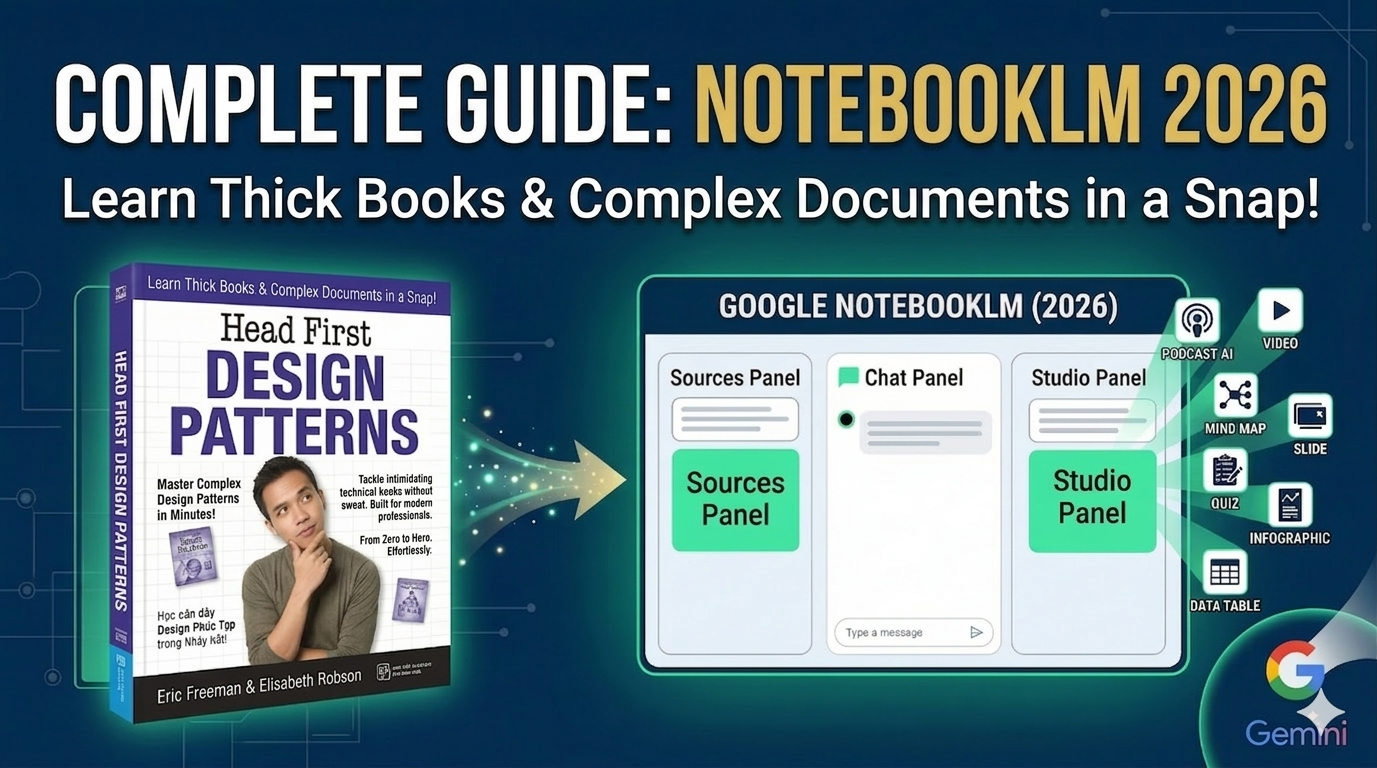
In this age of information overload, reading and understanding books hundreds of pages long or researching a complex technical topic is a major challenge. Simply reading a book like "Head First Design Patterns" could take you weeks if done traditionally.
Google NotebookLM was created to break down that barrier. It's a groundbreaking AI tool from Google Labs, running on the Gemini model, allowing you to upload documents and directly interact with that knowledge base. The core difference of NotebookLM is its Source Grounding mechanism: the AI only responds based on the documents you provide, displaying precise citations line by line and page by page for easy verification.
As a result, NotebookLM becomes a powerful personal research assistant, helping you:
Summary: Condenses knowledge from vast volumes of books.
In-depth explanation: Clarifying complex concepts in the simplest language possible.
Build a learning roadmap: Use the dedicated Study Guide feature in Studio to systematize your knowledge.
Assessment: Automatically generate quizzes to evaluate your level of understanding.
Diversify formats: Transform dry text into engaging podcasts (audio overviews), videos, slides, or infographics.
In this tutorial, we will go through all the features of NotebookLM, from basic to advanced. To illustrate, I will use the classic software architecture book, Head First Design Patterns, as a "test subject."
A huge plus is that NotebookLM now supports a wide variety of languages incredibly smoothly and accurately, from text content to voiceovers in videos and audio.
Now, let's begin our journey to unlock the power of NotebookLM!
NotebookLM is designed with four main areas, allowing you to manage documents, ask AI questions, and create content all within a single workspace. When you open a notebook, you'll see the following interface:
Located on the left-hand panel, this is where you upload and manage all your documents. You can add various sources such as PDFs, Google Docs, websites, YouTube videos, and text copies . NotebookLM will use these sources as a private knowledge base to answer your questions.
This is the central part. You can ask the AI about document content, request comparisons of concepts, or create learning paths. Each answer includes a citation from the original document, allowing you to verify the information immediately.
1.3. Studio Panel (Content Creation Area)
Located on the right, Studio allows you to transform the content in your document into various formats such as: AI Podcasts, Video Overviews, Mind Maps, Slides, Infographics... This is where NotebookLM demonstrates its greatest power.
NotebookLM allows you to save important insights to Notes. You can save AI responses or write personal notes to gradually transform the notebook into your own personal knowledge journal.
To begin the journey of transforming dry documents into vibrant knowledge, the first step is incredibly simple: create a notebook.
Method 1:
First, open your web browser on your computer and go to this address: notebooklm.google.com
your Google (Gmail) account to log in.
Method 2: If you are already logged into Gmail, click on the list of applications and then select "NotebookLM" near the bottom of the application list.
With both methods, you will be taken to the NotebookLM home screen.
To ensure the AI responds as accurately as possible in your native language, you should: immediately after logging in.
Tap the Settings icon in the upper right corner of the screen.
Find the Output Language section and select your desired language. You only need to do this once, and the AI will remember it permanently.
Now, create a "workspace" for the topic you want to study (for example, the book Head First Design Patterns ):
2. Immediately, a dialog box will appear asking you to upload the document.
After you upload your documents, the system will automatically name your notebook.
You can edit the Notebook name in the header box at the top left.
So you've completed the "introduction" step! Now, NotebookLM is ready to become your intelligent research partner.
Sources act as AI's knowledge repository. Instead of searching for information haphazardly on the internet, you'll build a closed and reliable knowledge environment.
Upload files directly: PDF, TXT, Markdown, Word. (Most common for studying books).
Connect to Google Drive: Directly access Google Docs/Slides.
Paste the link: Website or YouTube video. NotebookLM will automatically extract the text content.
Intelligent search engine (Research):
Fast Research: Quickly find reputable web sources on a topic.
Deep Research: AI plans and synthesizes information from dozens of sources to create in-depth reports.
Instructions: Click the + Add button in the Sources panel -> Select Upload files -> Upload the book file.
Additional note: You can add links to some YouTube videos about Java Design Patterns to give the AI more practical examples.
You can paste multiple URLs, one on each line:
Pro Tip (Contextual Control): Use the checkboxes next to each source. You can select all or just one source so the AI focuses on analyzing the exact part you want to use as input for learning and research.
Here you can ask questions directly about the document.
Citation-based Q&A: Each AI answer includes a citation. Clicking on the citation number will display the original text and the page number in the document in NotebookLM.
Custom Persona: In the Configure section , you can ask the AI to play the role of a Software Architect or a University Professor to explain the problem from an expert perspective.
Adjust the level of detail: You can request Shorter (quick summary) or Longer (detailed explanation).
Here's a real-world example:
Initially, instead of asking about minor details right away, try starting with strategic questions:
Question 1 (Effective Learning Method): "I'm a beginner in Design Patterns. Please suggest the fastest and most effective way to learn this book using NotebookLM. Which chapters should I focus on first?"
Result: NotebookLM will analyze the complexity of your chapters and suggest that you start with basic patterns like Strategy or Observer before moving on to more complex patterns, saving you considerable time.
Question 2 (Overview): "Based on this book, summarize the five most important things a programmer needs to master to improve their software design thinking."
Result: The AI will scan the entire book and identify key pillars such as the SOLID principles, Pattern groups (Creative, Structural, Behavioral), along with specific page citations.
Then , you can ask more detailed questions, for example: " Based on this book, analyze the differences between the Strategy Pattern and the Decorator Pattern using a coffee shop example. "
Result: The AI will explain the two patterns, compare their advantages and disadvantages, and quote a book page that uses Starbuzz Coffee as an example.
The Studio is where NotebookLM demonstrates the true power of a "research companion." Here, AI goes beyond simply answering questions; it helps you transform the vast body of knowledge from books into nine visually engaging and dynamic content formats .
To use the features in Studio, follow these steps:
Default usage: After selecting your source material (Sources) in the left-hand panel, simply click directly on the corresponding feature tab in Studio and wait a few seconds (video and audio may take a little longer) for the AI to process.
Using advanced configuration: If you want the output to be more focused, click the pencil icon (Edit) on each feature card to set up individual requirements (Configure) and then click “Generate”.
The results will be displayed in the Notes area right below Studio. You can view, interact with directly, or download them to your computer.
Here are the details of 9 powerful "weapons" in the studio.
This feature transforms book content into a lively podcast-style conversation between two AI hosts. It's a great way to absorb knowledge while you're commuting, working out at the gym, or cooking.
Custom Formats:
Deep Dive: A very in-depth analysis of the nature of patterns.
Brief: A quick summary of the chapter's main points.
Critique: An analysis of the strengths and weaknesses of each architectural approach.
Debate: Two hosts will debate which pattern should be used in a particular situation.
How to configure Audio Overview in detail:
When you click the pencil icon, the Customize Audio Overview window appears, allowing you to customize:
Choose a format: For example, select Deep Dive to delve deeper into the subject.
Language & Length: In Choose language , select the language you want to listen to. In the Length section , choose your desired duration.
Focus Instructions: This is where you "give orders" to the two AI hosts. Enter your request in the box "What should the AI hosts focus on in this episode?" .
Example 1 (Overview of the entire book):
Focus command: "Please discuss an overview of the entire content of this book. Clearly explain why Design Patterns are important and the learning path for the main pattern groups presented in the book."
Objective: To give you an overview before you begin learning the details.
Example 2 (Content of the first chapter):
Focus command: "Imagine two software experts discussing the content of Chapter 1. Focus on explaining the Strategy Pattern and why we should prioritize composition over inheritance."
Objective: Master fundamental thinking skills right from the first pages.
Example 3 (Going into specific details):
Focus command: “Imagine two software experts having an in-depth discussion about why the Decorator Pattern is more flexible than conventional inheritance in extending object functionality.”
Objective: To address the most challenging questions encountered during the learning process.
Getting Started: After entering the command, press Generate to have the AI begin recording your own podcast.
The great thing is: After the product is created, you open the podcast to listen. If you choose English as the output, you can not only listen passively, but you can also speak directly (ask questions using your voice) right in the listening interface to ask the AI to explain more clearly a point the host just mentioned. Currently, NotebookLM only supports voice interaction in English.
This feature helps you quickly create a professional presentation slide framework based on your document content without having to manually summarize each page. NotebookLM will automatically arrange the content, illustrations, and key points on each slide.
Instructions:
For best results, click the pencil icon (Edit) on the Slide Deck tab to specifically describe the style and content you want in the "Describe the slide deck you want to create" box .
A practical example using the book "Head First Design Patterns":
Example 1 (Slide for the entire content):
Requirement: "Create a slide deck with the title: 'Design Patterns Explained for Java Developers', including class diagrams, code examples, and detailed presenter notes for all the key patterns in the book."
Purpose: Suitable when you need an overview for a group presentation or as a quick reference document.
Example 2 (Detailed slides for Chapter 1 only):
Requirement: "Create a detailed slide set specifically for Chapter 1 on the Strategy Pattern. Focus on the 'Duck Simulator' problem, explaining why inheritance causes issues and how to replace it with interfaces. Include code examples illustrating the Strategy Pattern."
Objective: To help you delve deeper into a specific topic, prepare lectures, or systematically review material on your own.
After NotebookLM creates the slides, you can download them as PowerPoint or PDF.
If you're a visual learner, this is the "golden" feature. NotebookLM can create dynamic video presentations with AI-powered voiceovers, helping to visualize abstract concepts through easy-to-understand movements.
Style options:
When configuring, you can choose a visual style that suits your preferences, for example:
Whiteboard: A hand-drawn style on a whiteboard (extremely suitable for explaining UML class diagrams or data flows).
Anime: A vibrant, modern animation style.
Minimal: A minimalist style that focuses on text and basic geometric shapes.
A practical example using the book "Head First Design Patterns":
Example 1 (General introductory video):
Request: "Create a video providing an overview of the entire content of the book 'Head First Design Patterns'. Highlight the importance of learning design patterns for a programmer and summarize the main pattern groups that will be learned."
Objective: To give you a quick overview of the book's value before you begin your research.
Example 2 (Detailed video about the Observer Pattern):
Request: "Create a whiteboard-style video that explains the Observer Pattern's workflow in detail. Clearly illustrate the relationship between the Subject and the Observers, and how the Subject notifies registered Observers of state changes."
Objective: To transform the dry UML diagrams in textbooks into a dynamic animation simulating the code flow, helping you remember the essence of this design pattern for a very long time.
The great thing is: You'll get a very visual, lively, and engaging video that you can watch anytime, anywhere, making learning anything but boring.
Standard operating method (Default):
To create a mind map, you only need to follow two simple steps:
Step 1: In the Sources panel (on the left), select the documents you want to diagram.
Step 2: In the Studio area (on the right), click directly on the Mind Map tab. The AI will automatically analyze the selected sources and instantly generate the most comprehensive mind map.
A practical example using the book "Head First Design Patterns":
Note regarding Customization:
Unlike podcasts or videos, which have a dedicated "Edit" button for pre-configuration, Mind Maps currently lack this button.
This feature helps you create professional reports or well-structured summaries, which are extremely useful for research or knowledge sharing in a professional work environment.
Instructions:
By default: When you click the Reports tab in Studio, in addition to the available general formats, based on the sources you have selected, NotebookLM will automatically analyze and suggest a range of the most suitable report formats (Suggested Format).
Using advanced settings: If you want to fine-tune further, simply tap the pencil icon (Edit) on each suggestion template to change the language, target audience, or reader type.
A practical example using the book "Head First Design Patterns ":
When you click on the Reports section, NotebookLM will offer options such as Architectural Design Manual, Engineering Strategy Roadmap, or Pattern Relationship Summary.
Method 1: Create a General Briefing Doc (Default)
In the Create report window, select the Briefing Doc template.
The AI will automatically scan the entire book to generate a summary of key insights and most valuable quotes, allowing you to quickly grasp the core of hundreds of pages.
Method 2: Create a detailed document according to your requirements (Customize)
Select the Design Strategy White Paper template and click the pencil icon.
The great thing is: After clicking Generate, NotebookLM will present a report with full headings, subheadings, and detailed content.
Flashcards are a great tool for training your long-term memory. NotebookLM will help you automate the creation of flashcards, instead of you having to manually cut and paste each core concept or technical term.
Instructions:
Default usage: Simply click on the Flashcards tab in Studio, and the AI will scan the selected source materials to generate a standard set of flashcards.
Using advanced settings: To keep the flashcards more focused, click the pencil icon (Edit) . The Customize Flashcards window will appear, allowing you to customize:
Number of Cards: Choose the number of cards (Fewer, Standard , or More).
Level of Difficulty: Choose the difficulty level (Easy, Medium , or Hard).
Topic Focus: Enter your specific request in the "What should the topic be?" box .
A practical example using the book "Head First Design Patterns":
Example 1 (Creating Flashcards for the entire book content):
Request: "Create a set of flashcards that comprehensively cover all the key design patterns and object-oriented principles discussed in this book. Prioritize concise definitions on the front and practical examples on the back."
Objective: To help you get an overview and review all the important knowledge from the entire book.
Example 2 (Creating Flashcards for a Specific Chapter or Pattern):
Request: "Create flashcards solely for Chapter 1 on Strategy Patterns. Focus on design principles such as 'Encapsulate what varies' and 'Favor composition over inheritance'."
Objective: To help you focus intensely and thoroughly understand a specific chapter before moving on to new content.
The great thing is: After pressing Generate , the flashcards will appear with the term (e.g., "Strategy Pattern" ) on the front and a detailed explanation on the back. You can ask for explanations of the answers. You can learn directly on the NotebookLM interface.
This feature turns NotebookLM into an objective "judge," helping you assess whether you truly understand the essence of Design Patterns or have only just "read through" them.
Instructions:
Default usage: Simply click on the Quiz tab in Studio. The AI will use all the sources you've selected to create a comprehensive quiz.
To use advanced settings: Click the pencil icon (Edit) to open the Customize Quiz window. Here, you can set up:
Number of Questions: Choose the number of questions that suits the time you have (Fewer, Standard, or More).
Level of Difficulty: Choose the level of challenge that matches your skill level (Easy, Medium, or Hard).
What should the topic be?: Enter the specific content you want to check in the blank field.
A practical example using the book "Head First Design Patterns":
Example 1 (Comprehensive quiz for the entire book):
Request: "Create a test that covers all the main design patterns in the book. Present real-world scenarios and ask me which pattern would be the correct one to apply."
Objective: To test the ability to identify and apply knowledge to real-world situations.
Example 2 (Detailed quiz on a narrow topic):
Request: "Create a test that focuses solely on the differences between Factory Method and Abstract Factory. Formulate tricky questions to differentiate these two patterns at a Hard difficulty level."
Objective: To help you clearly distinguish between concepts that are often confused.
The great thing is: After you complete the quiz, NotebookLM not only gives you the correct/incorrect answer but also explains why, along with the exact quote from the book so you can immediately refer back to it if you answered incorrectly.
This feature helps you transform complex data and concepts into eye-catching infographics, making memorizing software architectures more intuitive than ever before.
Instructions:
Default usage: Simply click on the Infographic tab in Studio to have the AI automatically select the style that best suits your content.
Using advanced settings: Click the pencil icon (Edit) to open the Customize Infographic window. Here, you have many options to personalize your "artwork":
Choose language: Select the language to display in the infographic.
Choose orientation: Select the image size in landscape , portrait , or square .
Choose visual style: Select an aesthetic style such as Sketch Note (hand-drawn), Professional , Scientific , or even Anime and Kawaii .
Level of detail: Choose the level of information from concise to detailed .
Describe the infographic you want to create: Enter specific requirements regarding color or focal point in the blank fields.
A practical example using the book "Head First Design Patterns":
Example 1 (Infographic summarizing the principles):
Request: "Create a vertical (portrait) infographic in a scientific style, summarizing the core object-oriented design (OO) principles in the book. Use a predominantly blue color scheme."
Objective: To create a visually appealing knowledge-based image to save to your phone as a wallpaper or for quick review.
Example 2 (Detailed comparison between two patterns):
Request: "Create an infographic in SketchNote style to compare the differences between Factory Method and Abstract Factory. Use tables and icons to clearly distinguish the purpose of each type."
Objective: To visualize the differences between easily confused concepts through vivid images.
The great thing is: The resulting product is not just text, but a complete image file. You can download it to insert into reports or share it with your team to discuss the system architecture together.
This feature helps you extract comparative, enumerative, or technical information from documents and organize it into a neat data table. Instead of having to reread dozens of pages to compare patterns, you can have NotebookLM create a summary table in just seconds.
Instructions:
Default usage: Simply click directly on the Data Table tab in Studio. AI will automatically identify tabular entities (such as lists of Patterns, design principles) to export the data table.
Using advanced configuration: Click the pencil icon (Edit) to open the customization window. Here, you can select the language and provide detailed descriptions of the data columns you want the AI to extract.
A practical example using the book "Head First Design Patterns":
Example 1 (Table summarizing the 10 most popular patterns):
Request: "Create a data table summarizing the 10 most popular design patterns in the book. The columns should include: Pattern Name, Group (Creative/Structural/Behavioral), Main Use, and a practical example in Java as mentioned in the document."
Objective: To create an extremely useful "cheat sheet" for quick reference when working on projects or during job interviews.
Example 2 (Comparison Table of OO Principles Design Principles):
Request: "Create a table listing all the Object-Oriented Design Principles (OO Principles) mentioned in the book. The columns should include: Principle Name, Summary, and Names of Design Patterns that apply that principle."
Objective: To help you gain a deeper understanding of the relationship between theoretical principles and how to apply them in practice.
The great thing is: After the table is created, you can copy this data to paste into Excel, Google Sheets, or "Export to Sheets".
During your research, you'll discover many important insights, valuable code snippets, or sudden creative ideas. The Notes section is where you "package" those insights to build your own knowledge base.
NotebookLM offers you several ways to include information in your notebook:
Method 1: Save directly from Chat (Save to Note): When you receive a satisfactory answer from the AI, simply press the "Save to Note" button (the pin icon) right next to that answer. The content will automatically be converted into a separate note.
Method 2: Write your own notes: You can click the "Add Note" button in the Notes panel to enter your own content, thoughts, or personal notes.
Beyond simply storing notes, you can interact with them to improve your productivity:
Using Notes as a source for Chat: This is an extremely powerful feature. You can ask the AI: "Based on the notes I've saved, write a summary of object-oriented design patterns." The AI will then prioritize using the insights you've gathered to respond.
Tag and Organize: You can organize your notes by title or time for easy retrieval later.
NotebookLM is more than just a chatbot; it's a comprehensive learning and research system. Simply upload a book like Head First Design Patterns , and you can systematically ask questions, create diagrams, listen to podcasts, and take quizzes. This makes learning faster, more structured, and much easier to remember.
Stay tuned for more articles in this series! In the upcoming articles, we'll delve deeper into each interface area (Panel), learn how to customize every feature in Studio to create perfectly personalized products. In particular, I'll share advanced chat techniques to help you command the AI in the most effective way, thereby optimizing your research and information processing workflow. The goal of this series is to help you elevate NotebookLM beyond just a regular AI assistant, transforming it into a strategic partner accompanying you on your journey to conquer knowledge and achieve outstanding work performance.
![[Urgent Analysis] The Reality of the Grubhub Data Breach: The Attack Did Not Begin with “Grubhub” Itself](https://furublog.s3.dualstack.ap-northeast-1.amazonaws.com/media/furu_blogs/7.The%20Reality%20of%20the%20Grubhub%20Data%20Breach.png)