How ExcelTL Protects Sensitive Data With The Data Masking Transform
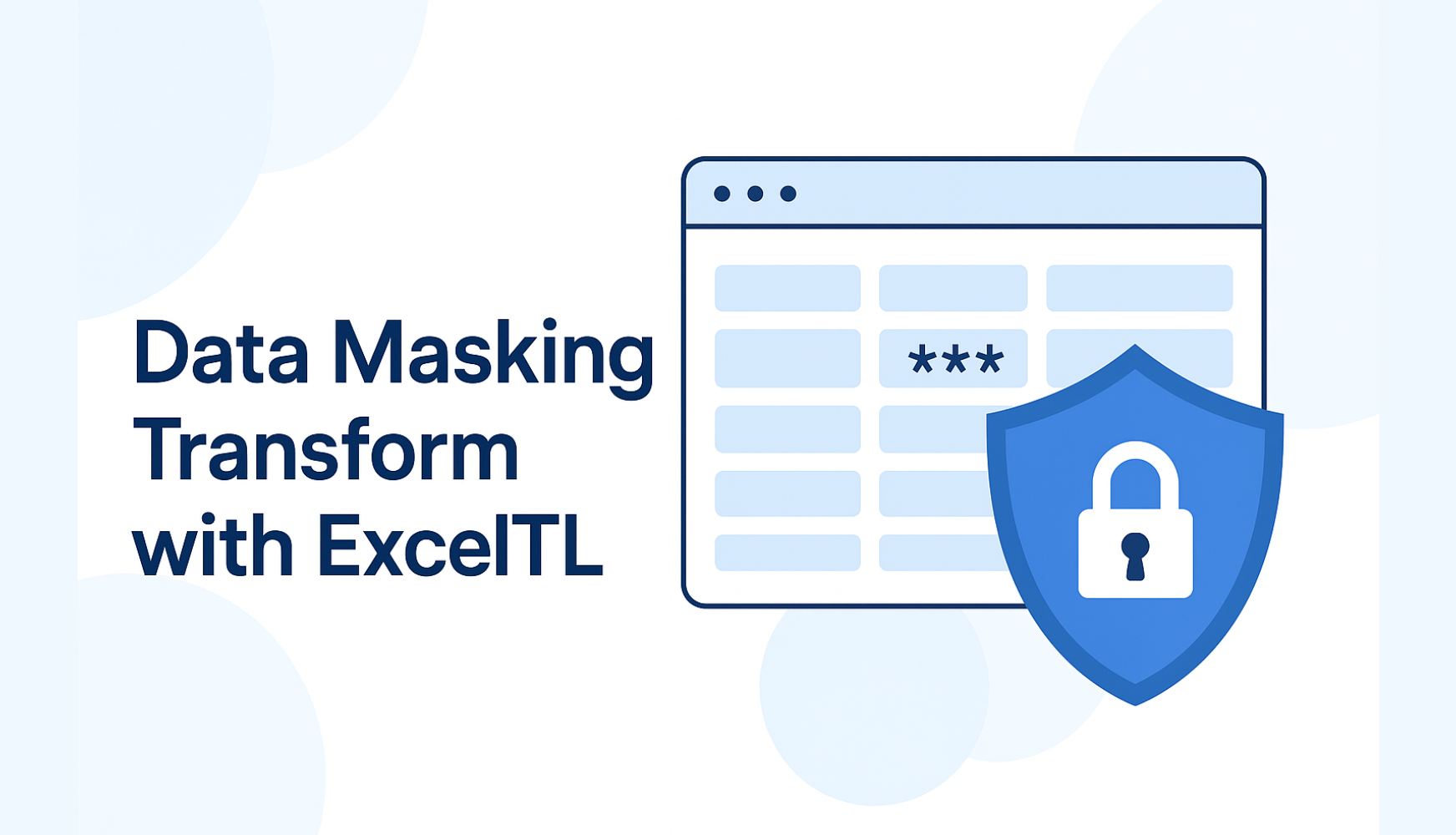
In data integration projects, there’s a very familiar but painful reality: we often need to use real data for testing, analysis, or demos… but at the same time we must not expose personal information (PII – Personally Identifiable Information) such as names, emails, salaries, phone numbers, bank accounts, etc. That’s why in ExcelTL we designed a dedicated transform: Data Masking – which allows you to partially or fully mask field values right in the Transform step, before data is loaded or shared with other parties.
What problem does Data Masking in ExcelTL solve?
The Data Masking transform in ExcelTL is designed with three main goals:
- Protect sensitive (PII) data
Information such as customer names, emails, salaries, and card numbers can be masked in a controlled way, helping you comply with internal policies and data protection regulations. - Enable “real but anonymized” data usage
Developers can debug, test mappings, and validate transform logic on “real-like” data without seeing actual personal details.
Partners, vendors, and SIs only receive masked data that still has a valid structure for analysis, but cannot be used to identify individuals. - Automation – no more manual masking scattered across systems
Instead of masking data manually in each place (Excel, Salesforce, Postgres, exported files…) every time you test or move environments, you define Data Masking rules once in the ExcelTL pipeline; from there, every job run across any connector (database, file, Salesforce, etc.) will apply masking consistently.
How ExcelTL approaches Data Masking
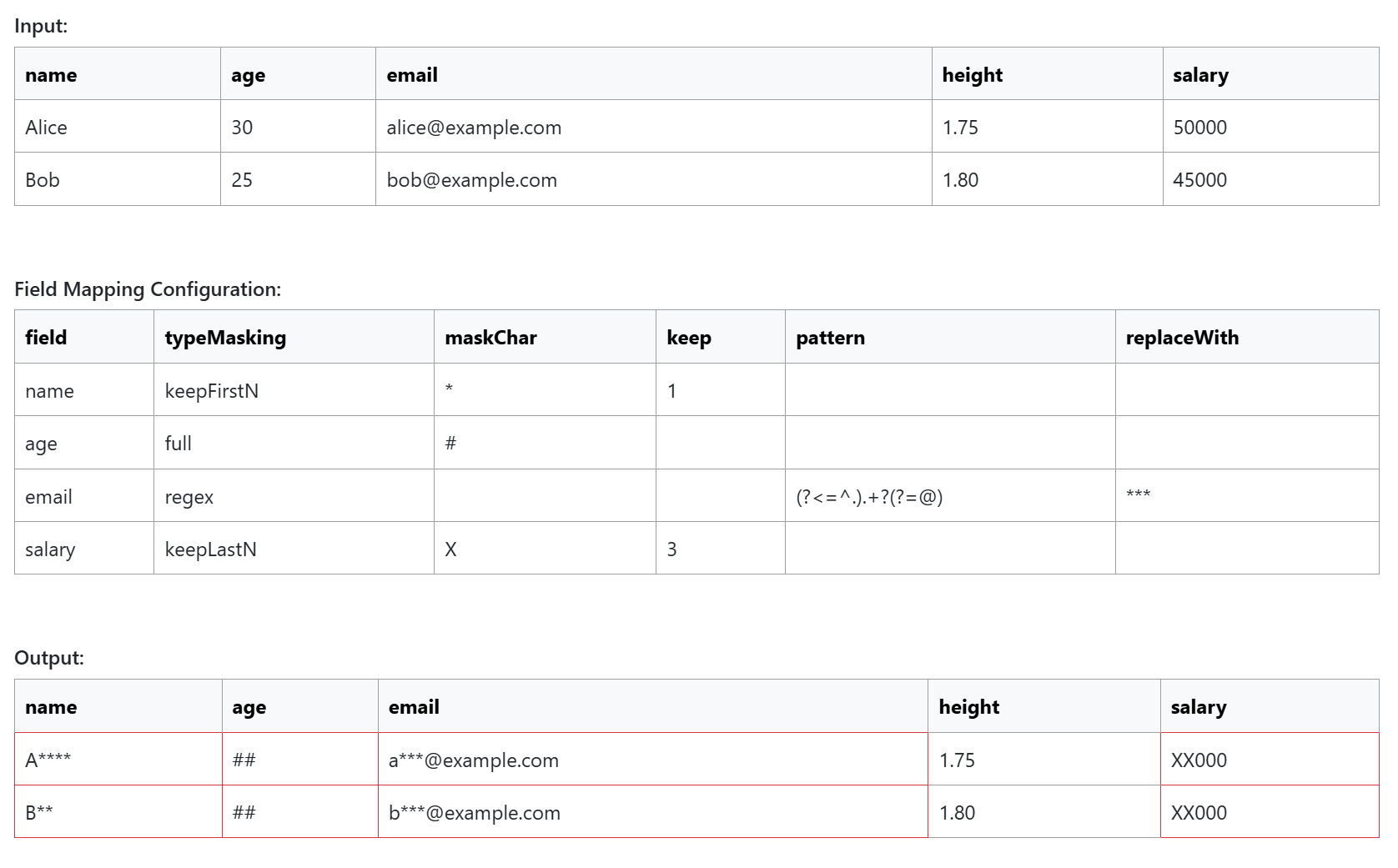
In ExcelTL, Data Masking is defined as part of the Transform step. You specify:
- Which fields should be masked
- Which masking type to use (basic, full, keep-first, keep-last, regex, etc.)
- Mask character (e.g., *, #, X, _)
- Additional rules depending on the masking type (how many characters to keep at the beginning or end, which regex pattern to mask, etc.)
When the job runs, ExcelTL will:
- Read the masking configuration
- Apply it record by record
- Output data with the configured fields masked
The key point is:
Everything is managed in Excel, in line with the philosophy “Define in Excel, Run by ExcelTL” – no need to write code or tweak complex SQL.
Flexible Data Masking strategies in ExcelTL
ExcelTL supports multiple masking strategies so you can adapt to different business scenarios without writing custom scripts.
1. Basic Masking – mask a fixed portion
Basic masking lets you hide a specific range of characters in a field based on position. For example, you might mask the first few digits of an ID or a segment in the middle of a string. This is useful when the data format and length are stable and you want to keep part of the value visible while hiding the rest.
2. Full Masking – mask the entire value
Full masking replaces the entire value with a mask character sequence (such as #### or ****). This is ideal for highly sensitive fields like salaries, bank account numbers, or national IDs where you only need to indicate that a value exists, not what it is.
3. Keep Last N – keep the last N characters
“Keep Last N” masks everything except the last few characters. It follows the familiar pattern seen in many financial systems, where only a small suffix is shown (e.g., ******7890). This is handy for card numbers, account numbers, or any code where users need a way to confirm “which one” without seeing the full value.
4. Keep First N – keep the first N characters
“Keep First N” does the opposite: it keeps the beginning of the value and masks the rest. This is useful for names or codes where seeing the initial characters is enough to distinguish records (e.g., Alice → A****), while still preventing full identification.
5. Regex Masking – pattern-based masking
Regex-based masking is the most flexible option. You define a regular expression that selects exactly which part of the string to mask. One common pattern is masking only the username part of an email while keeping the domain (e.g., alice@example.com → a***@example.com). This approach works well for emails, phone numbers with variable formats, addresses, or any free-text field containing PII.
Real-world scenarios for Data Masking in ExcelTL
Below are some situations ExcelTL customers often face, where Data Masking becomes especially useful.
1. Sharing data with vendors / implementation partners
When you need to send sample data to SIs or vendors so they can:
- Debug issues,
- Validate mappings,
- Or reproduce bugs in their environment,
You can:
- Use ExcelTL to extract data from DB / Salesforce
- Apply the Data Masking transform to PII columns
- Send the masked output file to your partner
Your partner still gets realistic data for analysis, while your customers’ PII stays protected.
2. Creating data for sandbox / staging environments
Copying raw production data into sandbox environments is a common but risky practice. With Data Masking, you can anonymize sensitive parts while preserving patterns, lengths, and relationships so that:
- Test logic,
- Reports, and
- Dashboards
continue to work correctly, without exposing real personal data.
3. Sharing internal reports across departments
Some departments only need to see trends and aggregated metrics, not who each record belongs to. Instead of building a separate reporting flow, you can:
- Mask employee names, customer IDs, or detailed salary fields
- Output a masked version of the same dataset from the same job
This allows a single ExcelTL job to serve both the core team (full data) and other stakeholders (masked data) safely.
Conclusion
The Data Masking transform in ExcelTL is not just a cosmetic feature – it’s a core part of your data protection strategy:
- Easy to configure directly in Excel
- Flexible enough to cover real-world privacy scenarios
- Helps you balance “using real data to build systems” with “protecting customer privacy”
Detailed instructions on how to configure each masking type (basic, full, keepLastN, keepFirstN, regex) are available in the ExcelTL User Manual – Transform: Data Masking . You can refer to that document to start applying Data Masking to your current jobs right away.
Related Articles